The Stretch Mark Epidemic: Why Your Wallpaper Looks Like a Funhouse Mirror
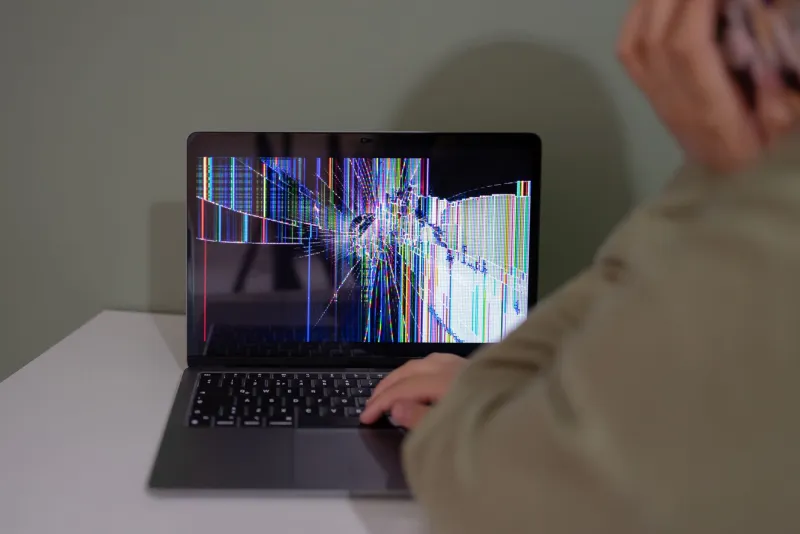
We need to talk about something. It's been going on for years, it's happening in offices and coffee shops and college dorms across the country, and nobody wants to say it out loud: your wallpaper looks like it got into a fight with a hydraulic press and lost.
You know the one. A mountain landscape that's been smooshed into a pancake. A family photo where everyone's faces have gone full carnival mirror. A phone background of a cat that's been cropped so aggressively you can only see one suspicious eye and half a whisker.
If you're nodding along — or quietly minimizing this tab to check your own desktop — this article is for you. No judgment. Just a fix.
The Confession Booth: Wallpaper Fails Are Everywhere
Ask around and the stories come pouring out. A project manager in Ohio told us she presented to her entire company for three months before noticing her sunset wallpaper had been stretched so wide the sun looked like a fried egg. A college student in Arizona admitted his laptop background was a pixelated mess from a 2012 meme he'd grabbed off a forum — and that he'd simply stopped seeing it after week one.
That's the thing about wallpaper fails: they're silent. You lock your screen, you come back, you unlock it. Your brain files the distortion under "normal" within days. It's everyone else who has to look at it during your Zoom share.
Why Your Image Turns Into Taffy
The villain in this story has a name: aspect ratio mismatch.
Every screen has a shape. Most modern laptops are 16:10 or 16:9, phones are tall and narrow (roughly 9:19.5), and ultrawide monitors run 21:9 or weirder. When you set an image that doesn't match your screen's shape, your operating system has three options:
- Stretch it — force the image to fill every pixel, warping everything in the process. This is the funhouse mirror effect.
- Crop it — zoom in until the image covers the screen, slicing off the edges. This is why your wallpaper subject is mysteriously missing a head.
- Letterbox it — keep the image intact but leave ugly black bars. Rare, but it happens.
Add a second wrinkle: resolution. An image that's 800 pixels wide being asked to fill a 4K display has to invent detail that isn't there. The result is that soft, blurry, slightly melted look we all recognize from early-2000s internet downloads.
Multi-monitor setups are where things get truly chaotic. Windows and macOS handle spanning images differently, and a wallpaper that looks fine on one screen can turn into a glitchy Rorschach test across three.
The Two-Minute Fix: Making Any Image Fit Any Screen
Here's your step-by-step rescue plan.
Step 1: Learn your screen's numbers. On Windows, right-click the desktop and open Display Settings to see your resolution. On a Mac, check System Settings > Displays. A resolution like 2560x1440 tells you both your pixel count and your aspect ratio (in this case, 16:9).
Step 2: Match the image to the ratio, not just the resolution. A 1920x1080 image will technically "work" on a 2560x1440 screen, but it'll be upscaled and soft. Aim for an image at or above your native resolution, with the same shape.
Step 3: Use the right fill setting. In Windows, right-click your desktop, choose Personalize > Background, and set "Choose a fit" to Fill — this crops intelligently instead of stretching. On macOS, System Settings > Wallpaper lets you pick how the image sits. Fill or Fit-to-Screen beats Stretch every time.
Step 4: For phones, embrace the crop — strategically. Phone screens are tall; most wallpaper art is wide. Position the focal point (a face, a horizon) in the center of the frame so the crop lands on empty space, not your subject.
Step 5: For multi-monitor, use separate wallpapers. Windows lets you right-click any image in Photos and "Set as desktop background" for a specific monitor. One image per screen beats one image awkwardly spanning three.
Step 6: When in doubt, re-source. If your image is low-resolution, no settings trick will save it. Download a properly sized version — which, conveniently, is exactly what a wallpaper site is for.
The Pre-Flight Checklist
Before you commit to a new background, run it through this quick test:
- Does anything in the image look wider or flatter than reality? (Check circles — a distorted clock face is a dead giveaway.)
- Is the subject fully visible after cropping, or did the top of someone's head become a casualty?
- Does the image hold up at full size, or does it dissolve into blur?
- If you use multiple monitors, does each screen get a fair deal?
If you answered yes, yes, yes, and yes — congratulations. Your wallpaper is doing its job.
Your Screens Deserve Better
Look, nobody's coming to inspect your desktop. But you're going to look at that background hundreds of times a day, and a crisp, well-fitted image is one of those tiny quality-of-life upgrades that quietly makes every session at your desk a little nicer.
So do the golden retriever a favor. Un-stretch him. He's been through enough.